A New Dog's First Day Starts in the Review Queue

Two rules in Organization Settings decide what happens when an owner adds a new pet in the Pet Parent Portal: Require Pet Review Before Booking and Require Trials Reservations. With both on, the pet waits for staff approval and then needs a trial day before any regular reservation. With both off, the owner can reserve for it right away.
What the owner does
The owner adds Biscuit from the portal's Pets page. When review is required, the form says new pets must be approved by your staff before they can reserve, and that a trial daycare day may be the last step. Saving sends the owner to a page for uploading vaccination documents, with your required vaccines listed at the top.
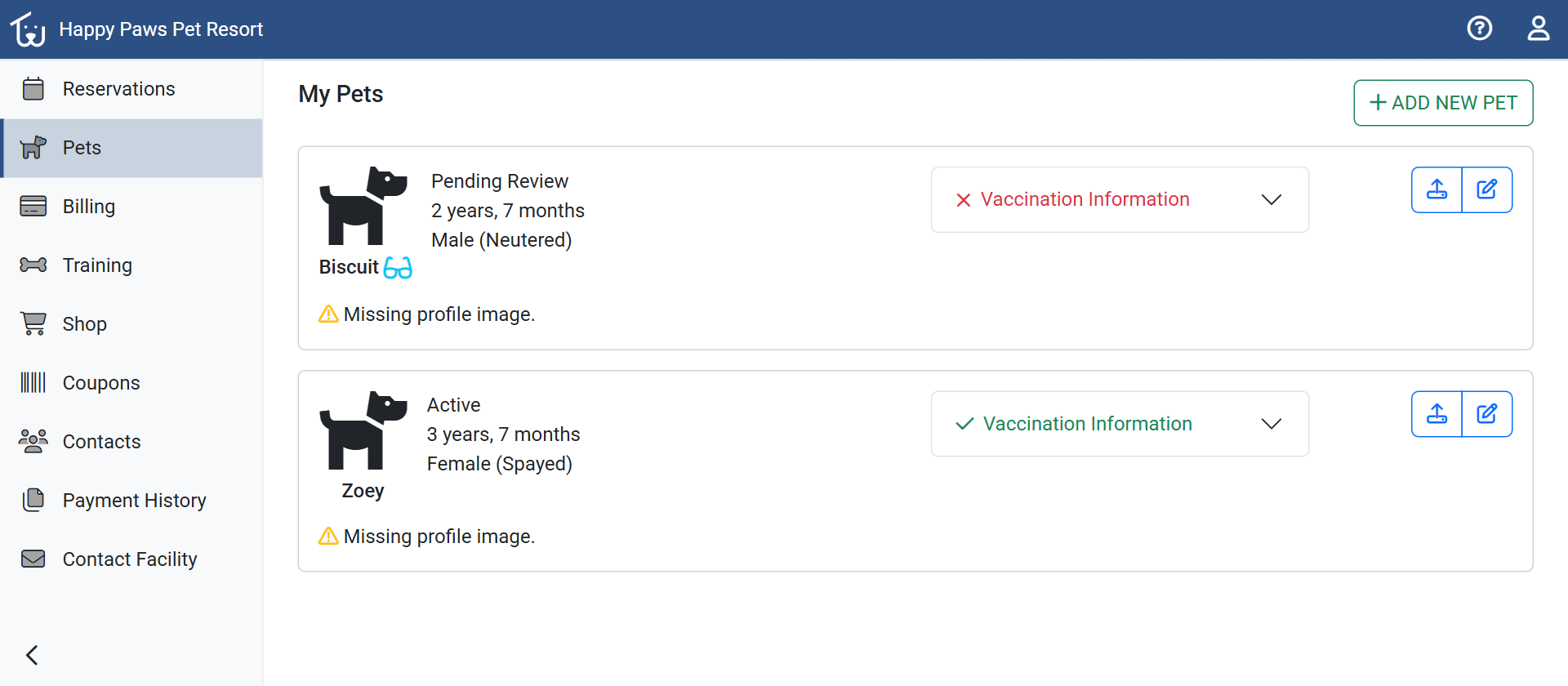 Biscuit just after the owner added him: Pending Review, with a red vaccination box because no vaccine dates are on file yet.
Every pet added through the portal starts as Pending Review, whatever your settings. A brand-new owner's account starts in Pending Review too, and moves to Pending First Visit when the last waiting pet is approved, with an account-approved email unless the owner opted out of those emails.
Review and trial rules
An Account Owner turns these on in the Rules section of Organization Settings. Require Pet Review Before Booking stops an owner from reserving for a Pending Review pet in the portal until staff approve it. Require Trials Reservations makes approval move the pet to Pending Trial instead of Active, and the owner can't reserve regular services for it until a trial is done.
With neither rule on, an owner can reserve for a pet while it waits. With review off and trials on, a Pending Review pet can schedule its trial straight away.
The review queue
Once the owner saves, the pet is a row on the Pending tab under Customers, and someone on your team has to pick it up. The check-in post shows the queue itself. The icons at the end of each row let you email or call the owner for missing records and log a note that you did. The email icon needs an address on file, and the call link needs a phone number and the View Customer Phone Numbers permission.
Review opens the pet's details with a date field for each of your vaccine types, required ones marked, and a preview of the owner's uploads. You read the document and type the dates. The main button reads Approve for Trial when your organization requires trials and Approve when it doesn't. A pet that isn't Pending Review shows Mark as Reviewed instead, for a new document.
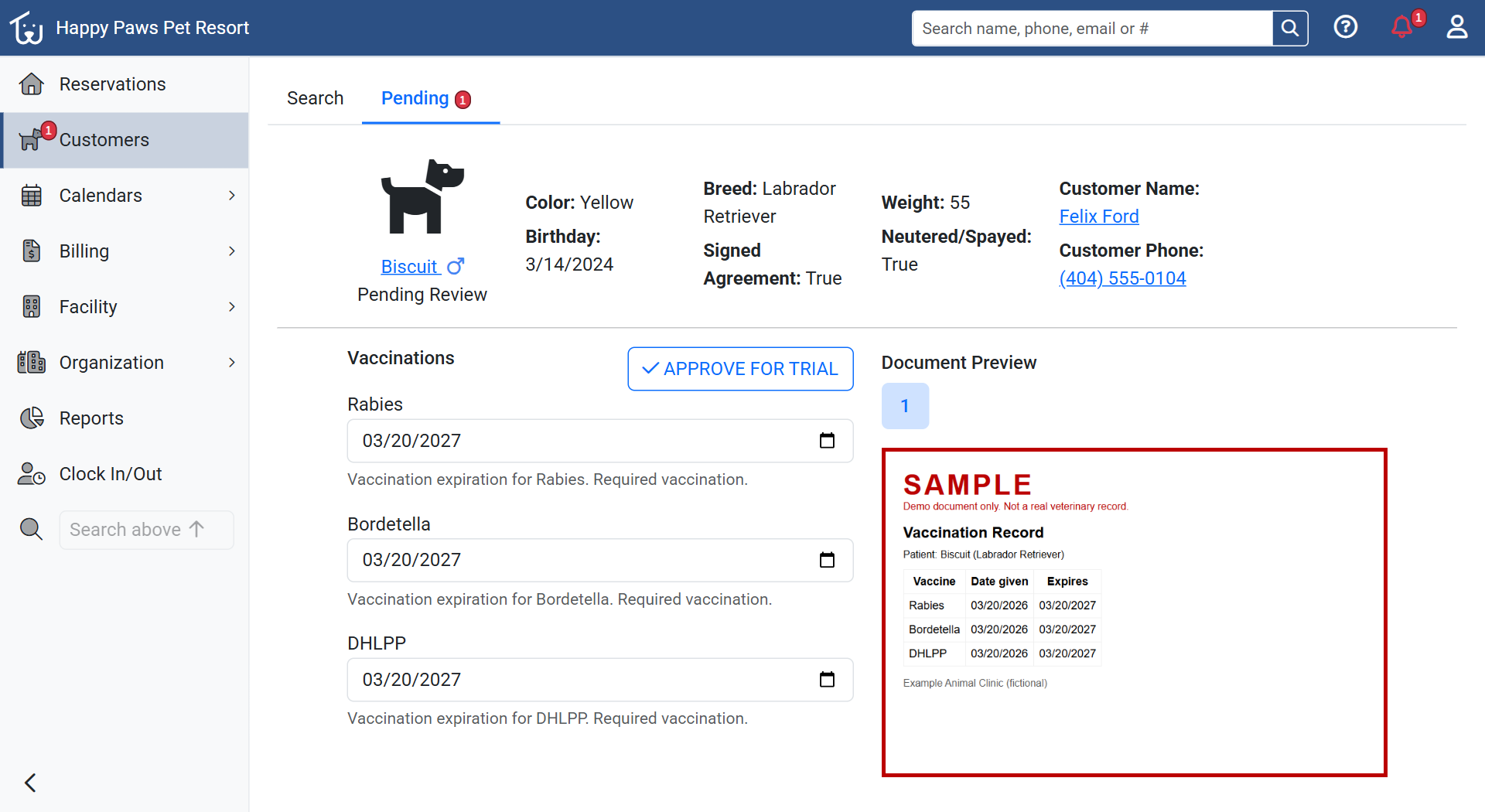 The review page for Biscuit. The document is a sample made for this demo, the dates are typed from it, and the button reads Approve for Trial.
If a required vaccine has no date, Petsoft asks you to confirm and then lets you approve anyway. The owner may get an approval email, depending on their notification settings and whether other pets are still waiting.
There is no decline button. To turn a pet away before a trial, tick Banned on its General tab. Banning a pet also removes it from its upcoming reservations and cancels any that it is the only pet on. The Help Center page on the pending review queue lists each button.
The trial day
From the portal, the owner's Reservations page offers Schedule Trial for a pet waiting on a trial. A single-day trial is paid in full up front, whether the owner reserves it in the portal or your team does in the Office Portal. When your team reserves a day for a Pending Trial pet, Petsoft marks it as a trial, and the service reads Daycare (Trial).
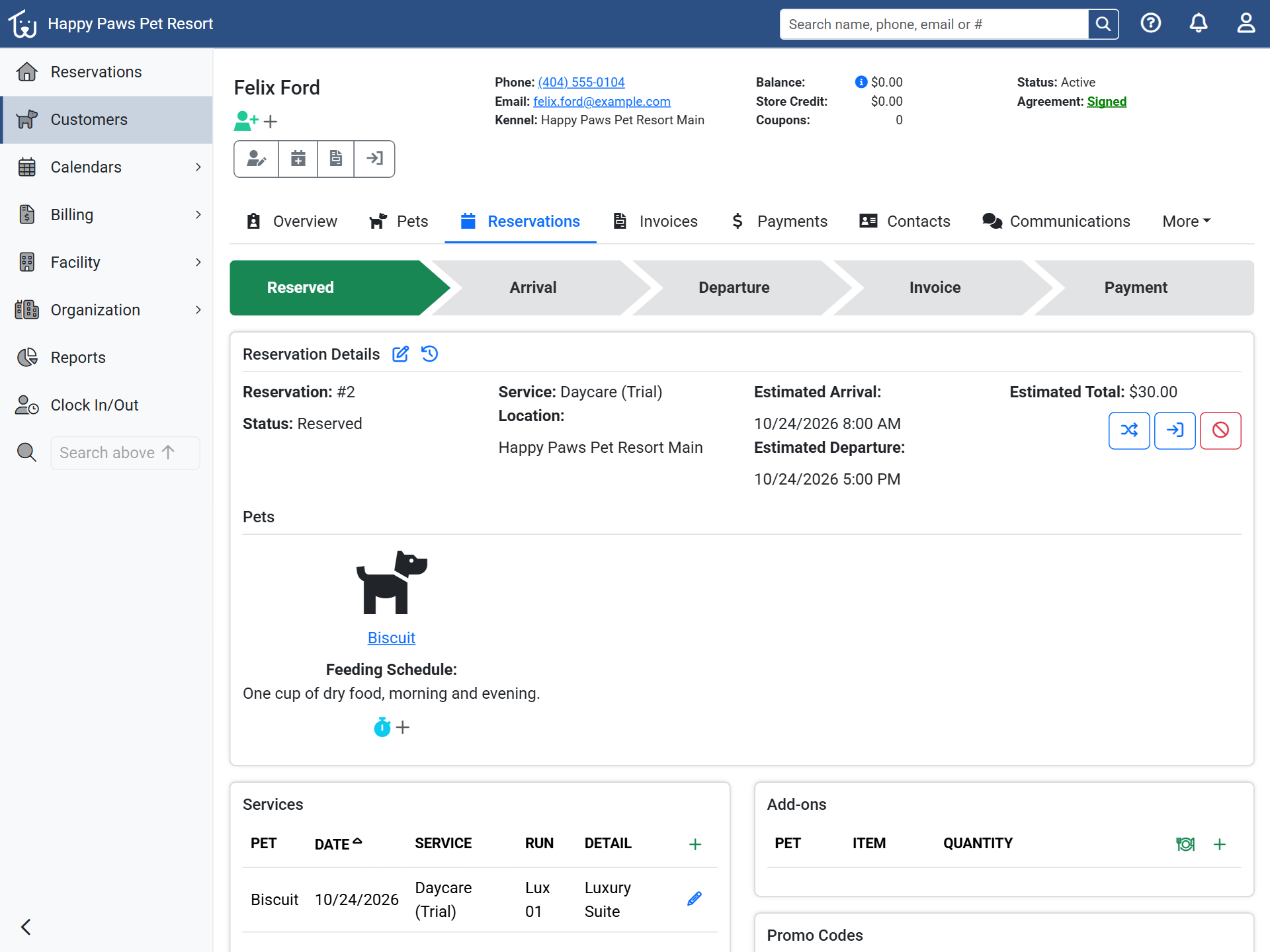 The trial reservation in the Office Portal. The service reads Daycare (Trial), and the stopwatch under Biscuit marks a pet in Pending Trial.
The day runs like any other. At departure, the Check-Out button asks for the departure date and time, and saving that opens Trial Review. It asks about each pet still in Pending Trial, "Is this pet allowed to come back in the future?", with an optional note.
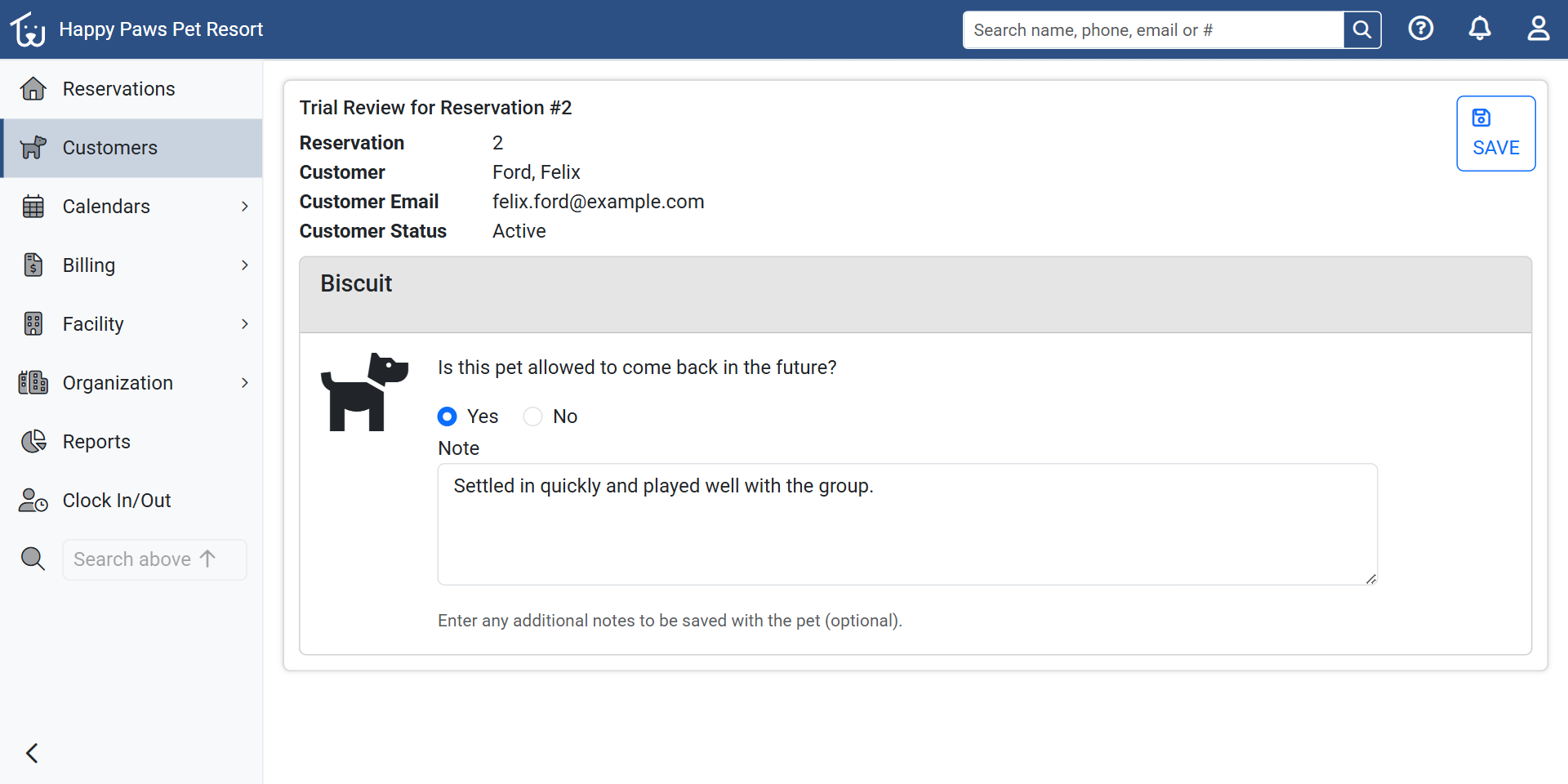 Trial Review with Yes selected. The note is saved on the pet as a staff-only Boarding Note.
Yes makes the pet Active. No makes it Ineligible and bans it, and No is already selected when the page opens, so saving without choosing bans the pet. Trial Review doesn't send the owner a message either way. The owner's Pets page shows the new status, and for an Ineligible pet it asks them to contact the facility. If a No turns out to be a mistake, a staff member can untick Banned on the pet record and set the status back to Active or Pending Trial. The Help Center page on trial service and pet status covers the rest.
If your facility handles trial outcomes differently, contact us and tell us how.