Seven Short Videos to Help Your Pet Parents Use the Portal

Most "how do I..." calls from owners are about the same few steps: creating an account, making a reservation, paying a deposit, turning on text messages. We published a playlist of seven short videos that walk through each of those steps in the Pet Parent Portal, so an owner can watch the answer instead of waiting for one.
What's in the playlist
Each video covers one task in about two minutes, from the first click to the confirmation.
| Video | What the owner sees | A good time to send it |
|---|---|---|
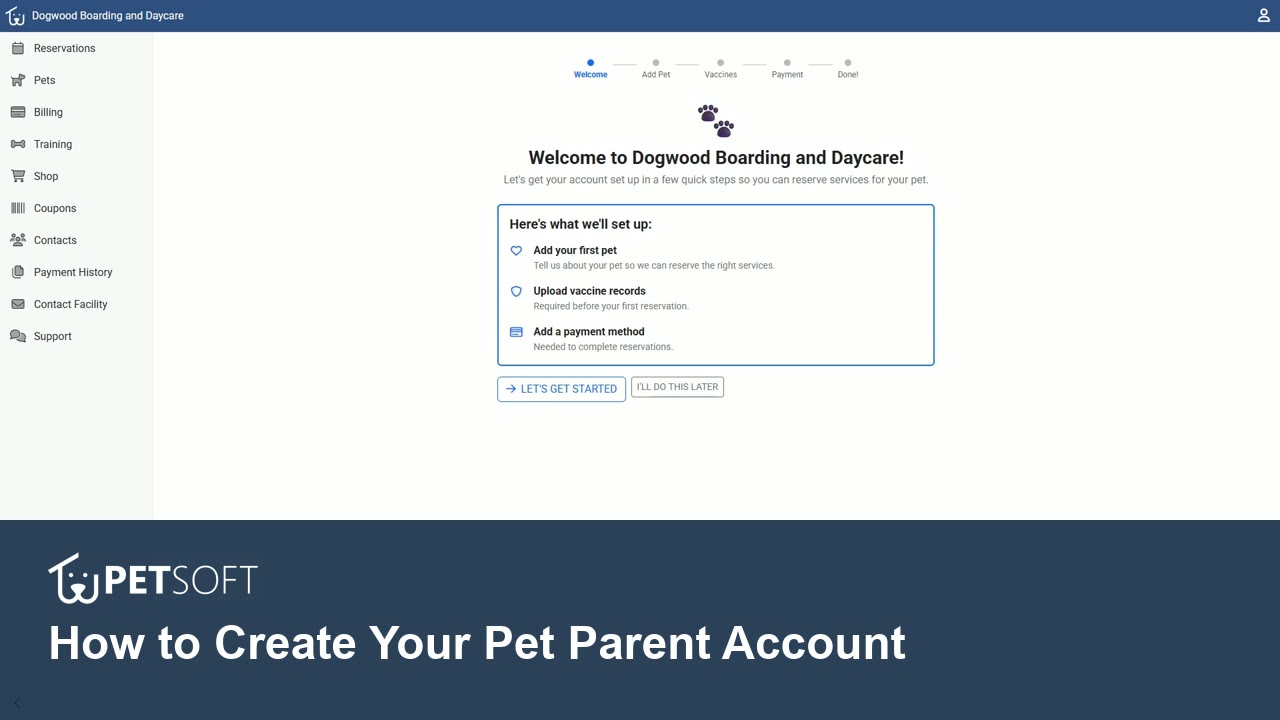
| Create your Pet Parent account | Signing up, verifying the email address, and the welcome checklist after the first login | With your registration link or invite code |
| Schedule a Trial Reservation | The Schedule Trial button, picking a date, and the trial waiting for your confirmation | After you approve a new pet for its trial |
| Make a Daycare Reservation | Choosing two pets and selecting several days on the calendar in one pass | When a regular asks how to book a week at a time |
| Make a Boarding Reservation | Arrival and Departure times, then choosing accommodations for each pet | Before a holiday rush |
| Make a Grooming Reservation | Picking a groomer or First Available, then an open appointment time | When you open grooming to online booking |
| Pay a Reservation Deposit | Adding a card, the deposit due today next to the full total, and the Terms of Service and cancellation policy links | When you add a deposit policy to a service |
| Change your notification preferences | Choosing which emails to get, opting in to text messages, and picking which texts | When your text messaging number goes live |
Here is the first one:
Where to share them
The videos do the most good at the moment an owner is about to do the task.
- Next to your registration link. The Help Center page on online booking shows where to find your registration link, invite code, and QR code. Add the playlist link wherever you post those.
- When you turn on text messages. Owners have to opt in to each kind of text, and most never go looking for the setting. The text messaging setup page explains why; the notifications video shows them where it is.
- With a new deposit policy. If you start asking for deposits, the deposit video shows owners what they will see before they see it. The post on deposits and cancellations covers what happens on your side.
- After a trial approval. The new-dog post follows a pet from the review queue to its trial. The trial video shows the owner's half.
The Parent Portal pages in the Help Center now include the same videos, so an owner reading how to make a reservation can watch it there too.
What owners should expect
The videos were recorded in a demo facility. Your portal shows your own name, services, prices, and add-ons, and may use a different word for the space a pet stays in, so a few screens will look different. The steps are the same. Questions about an owner's account, a deposit, or a refund still belong with you, and the account, deposit, and notification videos say so in their descriptions.
The videos are in English.
If there is a task you would like a video for, contact us and tell us which one.