Connecting QuickBooks Online
Petsoft can send your customers, invoices, payments, and refunds to QuickBooks Online automatically, so your bookkeeper sees the same numbers your front desk does without anyone re-typing them. Once a facility is connected and its accounts are mapped, everything exports in the background. There's nothing to remember at close of day.
Petsoft is always the source of truth, but it also reads back what changes in QuickBooks. Each sync sends Petsoft's changes to QuickBooks first, then reads what changed there: renamed or deleted accounts, edits to exported invoices, payments and refunds entered in QuickBooks, and, if you turn it on, customer changes. Where the two systems disagree and Petsoft can't settle it safely on its own, it lists a conflict for you to decide instead of overwriting either side. See What Petsoft reads back from QuickBooks.
The connection is set up per facility, not per organization. If you run more than one facility, each one connects on its own, either to its own QuickBooks company or to a shared one. See Choosing a setup for multiple facilities below.
What you need
- The Professional subscription plan or higher. On a lower plan, QuickBooks doesn't appear in the sidebar, even with the permission below.
- The Manage Accounting Integrations permission. This is an extra permission granted through an Organization Group, the same way other sensitive settings are. See Security & permission groups if you need to grant it to someone. Without it, QuickBooks doesn't appear in the sidebar.
- A QuickBooks Online company whose home currency is US dollars. Petsoft only works in USD, so Petsoft refuses to connect a company set up in another currency.
- Sign-in access to the QuickBooks Online company you want to connect. You authorize the connection on Intuit's own sign-in screen. Sign in as a QuickBooks company admin, since a user with fewer rights may not be allowed to create the records Petsoft sends.
Connecting a facility
- In the sidebar, go to Billing > QuickBooks.
- If your organization has more than one facility, you'll see a list of them with each one's QuickBooks company, location, and status. Click Set up next to the facility you want to connect. A facility that isn't connected yet shows Not set up. If you only have one facility, Petsoft skips the list and opens that facility's page directly.
- Click Connect to QuickBooks.
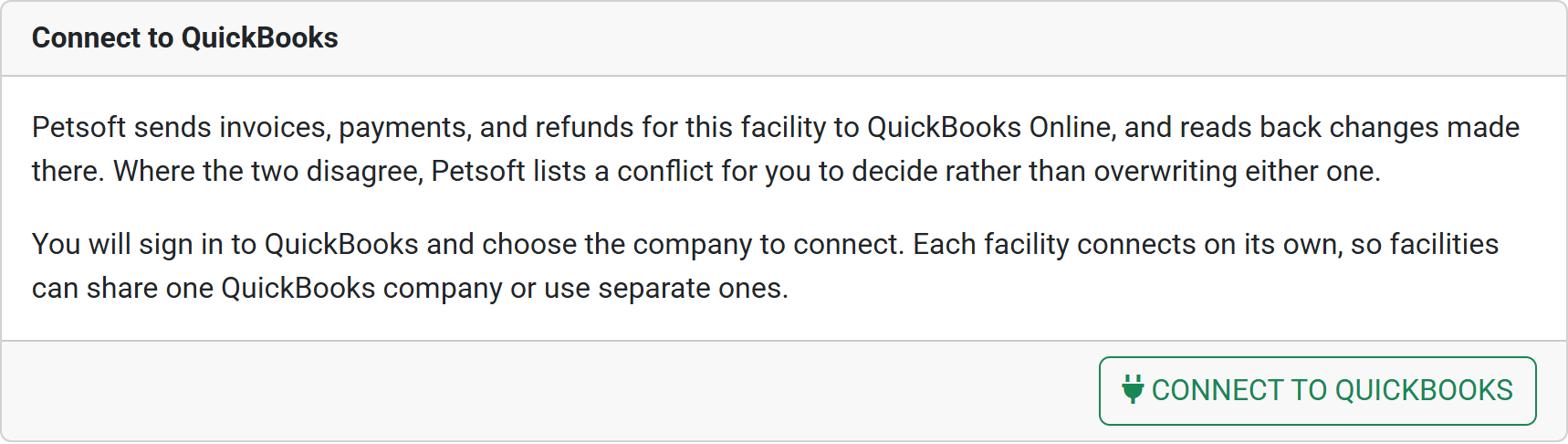 Each facility connects on its own, so facilities can share one QuickBooks company or use separate ones.
- Petsoft sends you to the QuickBooks sign-in page. Sign in and choose the company you want this facility to send data to.
- QuickBooks asks you to authorize Petsoft's access. Approve it.
- You're returned to Petsoft, which checks the company's home currency before it finishes the connection. If the currency isn't USD, the connection is refused and you see "Petsoft can only connect to QuickBooks companies that use US dollars. This company's home currency is …" with the currency QuickBooks reported.
Once the connection succeeds, Petsoft takes you straight to the Account mapping page. The facility is connected at this point, but nothing is sent until the mapping is finished.
Mapping your chart of accounts
Every Petsoft accounting entry needs somewhere to land in QuickBooks. The Account mapping page lists each Petsoft account next to a dropdown of the matching accounts from your QuickBooks chart of accounts. Under each Petsoft account's name, Petsoft shows which kinds of QuickBooks account it can post to, and the dropdown only offers active accounts of those kinds.
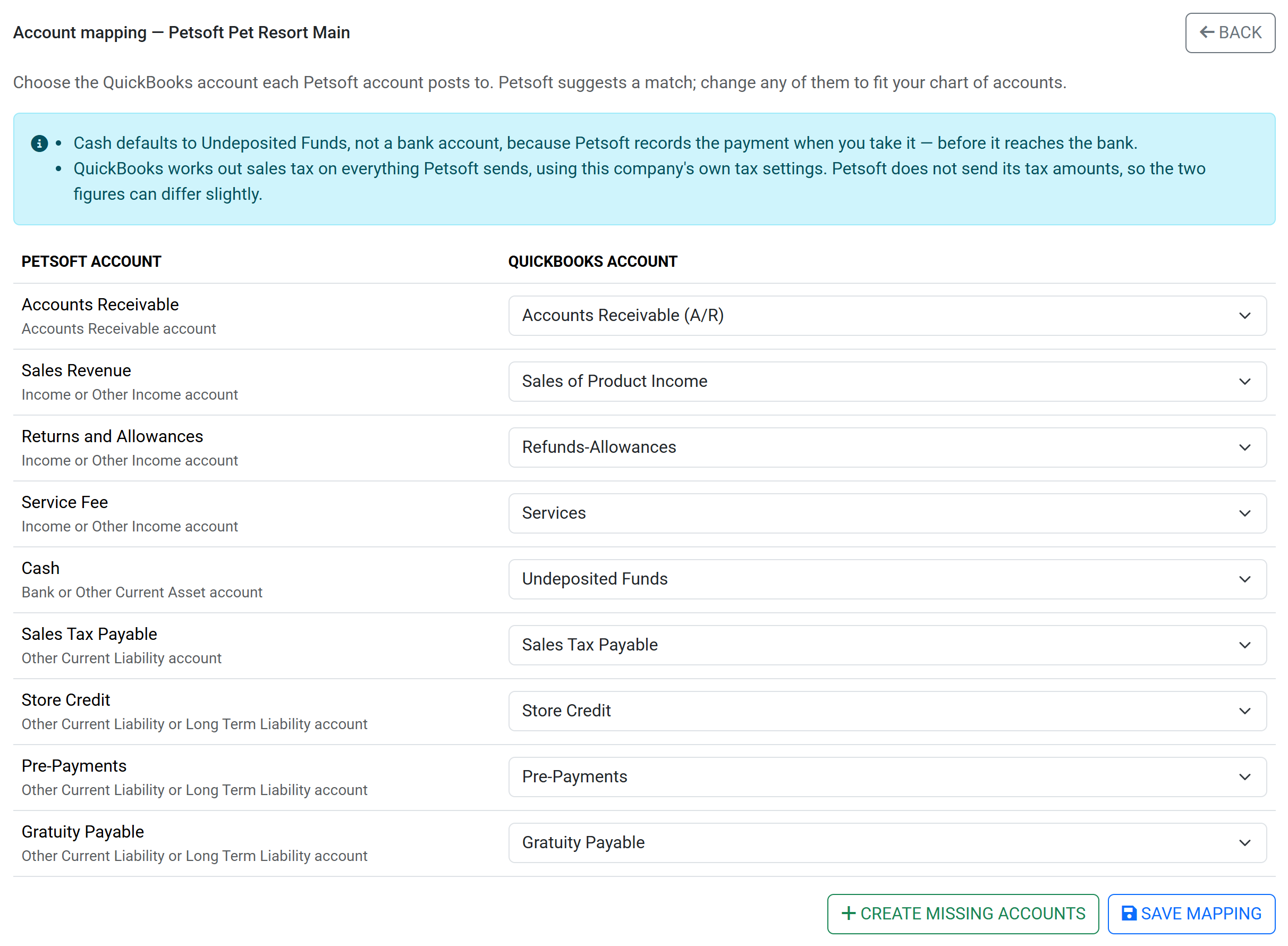 Each Petsoft account, the kinds of QuickBooks account it can post to, and the QuickBooks account it's mapped to.
Where your company already has a suitable account, Petsoft pre-selects it for you:
| Petsoft account | Can map to | Petsoft suggests |
|---|---|---|
| Accounts Receivable | Accounts Receivable | Your Accounts Receivable (A/R) account |
| Sales Revenue | Income or Other Income | A sales of product income account |
| Returns and Allowances | Income or Other Income | A discounts/refunds given account |
| Service Fee | Income or Other Income | A service/fee income account |
| Cash | Bank or Other Current Asset | Undeposited Funds |
| Sales Tax Payable | Other Current Liability | A sales tax payable account. Not needed if your company uses Automated Sales Tax; see About sales tax. |
| Store Credit | Other Current Liability or Long Term Liability | An account named Store Credit, if you have one |
| Pre-Payments | Other Current Liability or Long Term Liability | A deferred revenue account |
| Gratuity Payable | Other Current Liability or Long Term Liability | An account named Gratuity Payable, if you have one |
Change any row to fit your own chart of accounts, then click Save mapping. A pre-selected suggestion doesn't count until you save it. You don't have to finish in one sitting: a partial save keeps what you chose and marks each row still missing as This account is required.
Cash defaults to Undeposited Funds, not your bank account. Petsoft records a payment the moment you take it, before it reaches the bank, so Undeposited Funds is the accurate match. Point it at a bank account only if that matches how your bookkeeper reconciles.
Accounts Receivable needs to be your default A/R account. QuickBooks posts every invoice to its default A/R account whatever Petsoft asks for. If your company has more than one A/R account, Petsoft reminds you to choose the default one.
Creating accounts you don't have yet
If a row has nothing suitable to map to, click Create missing accounts. Petsoft first saves whatever you've already chosen. It then creates a QuickBooks account for each row that's still unmapped, named after the Petsoft account (for example, Store Credit), and maps the row to it. If QuickBooks already has an active account with that name, Petsoft maps to it instead of creating a duplicate. This is an optional shortcut: most businesses already have accounts they'd rather map to.
Petsoft never creates an Accounts Receivable account, since QuickBooks would ignore it. Choose your existing default A/R account for that row yourself.
When the mapping is complete
Once every required account is mapped, Petsoft confirms the mapping is saved and starts sending new activity automatically. The same confirmation links to the historical import, for bringing over records from before you connected. See Sending older records: historical import.
You can come back and change the mapping at any time from Review mapping on the facility page. When you point a Petsoft account at a different QuickBooks account, new invoices post to the new account from the next sync onward. Invoices already in QuickBooks keep the account they originally posted to.
When an account changes in QuickBooks
Petsoft reads your chart of accounts on every sync, so it notices when someone changes a mapped account in QuickBooks:
- Renamed: nothing to do. Petsoft keeps exporting to the renamed account and lists a low-priority Mapped account renamed in QuickBooks conflict so you know it happened.
- Deleted, made inactive, or changed to a type that can't take the postings: the mapping is out of date, and Petsoft pauses every export for that facility until you fix it. Nothing is lost. Invoices, payments, and refunds wait and send once the mapping is fixed.
When exports pause this way, the facility shows Action needed with "A mapped account can no longer be used in QuickBooks, so exports are paused. Choose new accounts to resume." The affected row on the Account mapping page says what changed (for example, "Store Credit was made inactive in QuickBooks."), a high-priority conflict opens, and your organization's Account Owners get an email titled "QuickBooks exports paused for (facility)".
To resume, click Choose new accounts (or Review mapping), pick a usable account for each flagged row, and click Save mapping. Saving clears the problem and closes the conflict, even if you choose the same account after reactivating it in QuickBooks. Petsoft never remaps an account for you.
About sales tax
QuickBooks calculates its own sales tax on everything Petsoft sends, using that company's own tax settings. Petsoft doesn't send its tax amounts. This means the two figures can differ slightly. A fully paid Petsoft invoice may show a small open balance, or a small credit, in QuickBooks once QuickBooks applies its tax. This is expected and isn't an error. Petsoft also ignores tax when it compares invoices it reads back from QuickBooks, so these differences never raise a conflict on their own.
If your QuickBooks company uses Automated Sales Tax, the Sales Tax Payable row shows "Petsoft doesn't choose this account: QuickBooks assigns it automatically" instead of a dropdown. QuickBooks manages that account itself, so there's nothing to map and the row isn't required.
Choosing a setup for multiple facilities
Because each facility connects on its own, you can set up QuickBooks in a few ways, depending on how your business is organized:
| Setup | How to configure it | Best for |
|---|---|---|
| One QuickBooks company per facility | Connect each facility to its own company. Leave Location set to None. | Separate legal entities, separate books, separate accountants. |
| One company, split by location | Connect every facility to the same company, then give each facility a different Location. | One legal entity that wants reports broken out per site. |
| One company, no locations | Connect every facility to the same company. Leave Location set to None. | One legal entity that doesn't need per-site reporting. |
You can mix these. For example, two facilities can share a company while a third has its own.
Setting a location
The Location panel on the facility page tags everything this facility sends with a QuickBooks location, so QuickBooks reports can be split by facility. Choose an existing location from the dropdown and click Save. If the company doesn't have a location named after this facility yet, the dropdown also offers Create "facility name" in QuickBooks, which creates one and selects it.
QuickBooks only uses locations when location tracking is turned on for that company. If it's off, the Location panel tells you, because QuickBooks ignores the location on anything Petsoft sends rather than rejecting it. To turn it on, in QuickBooks go to Settings > Account and settings > Advanced > Categories and turn on Track locations. Then click Reload locations in the Location panel so Petsoft picks up the change.
Choosing what to send
The What to send panel on the facility page controls which records export automatically:
- Customers are always sent, since every invoice needs one.
- Invoices sends each finalized invoice and its lines.
- Payments sends payments, applied to the invoices they pay.
- Refunds sends refunds of payments that were already sent.
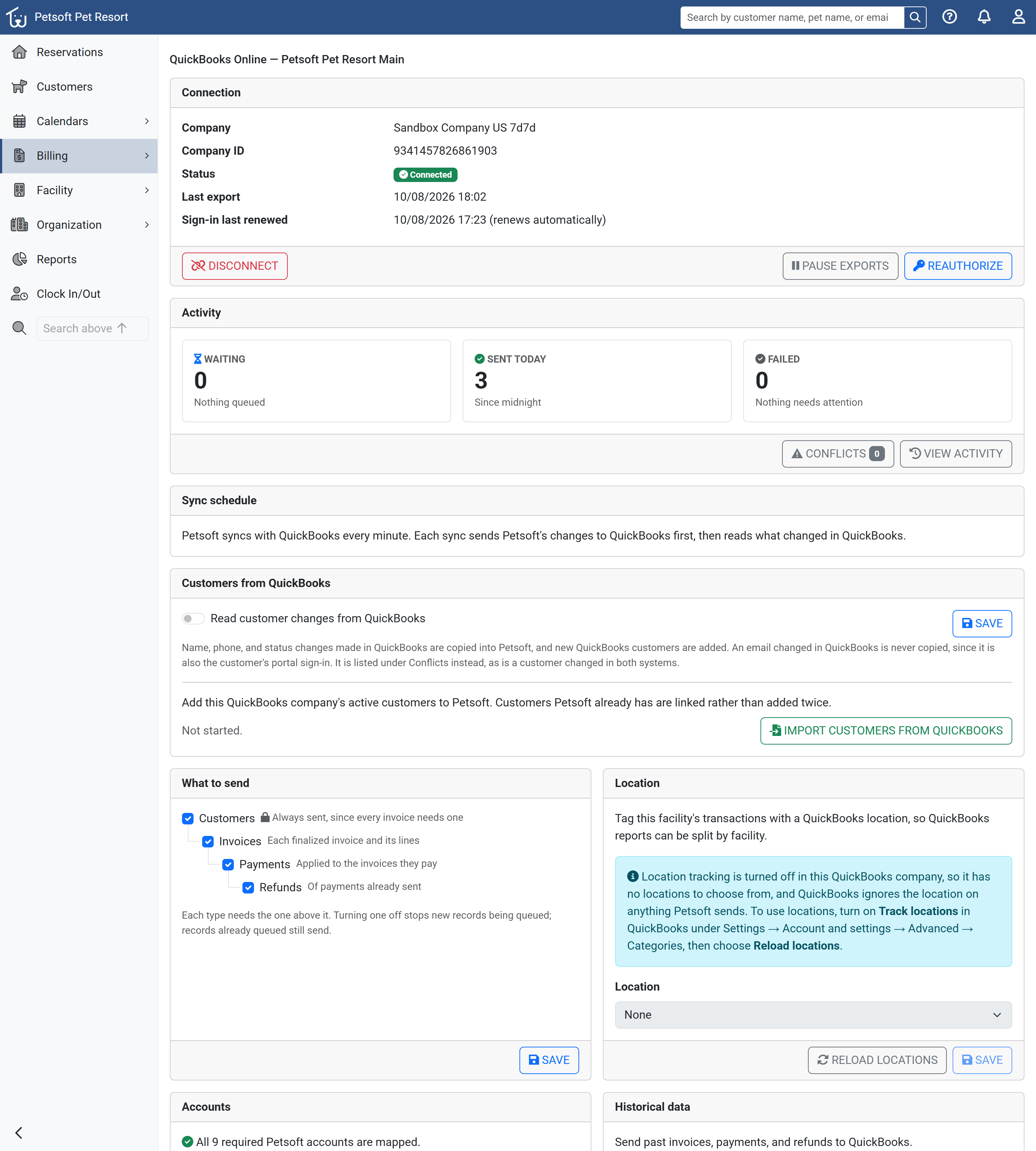 A connected facility. Pause, reauthorize, or disconnect from the Connection panel, open Conflicts or the Activity page from the Activity panel, and choose whether customer changes come back from QuickBooks.
Each type needs the one above it: Payments requires Invoices, and Refunds requires Payments. Unticking one automatically unticks the types below it. Click Save to apply your changes.
Turning a type off only stops new records being queued. Anything already queued still sends. Records created while a type is off aren't queued later when you turn it back on, but you can send them with a historical import.
The same boxes control what Petsoft reads back. With Payments unticked, for example, Petsoft doesn't look for payments entered in QuickBooks either. When you tick a type again, Petsoft catches up on the changes made in QuickBooks while it was off.
If you untick Invoices, nothing but customers is sent, and the facility shows as Paused.
Customers from QuickBooks
The Customers from QuickBooks panel on the facility page controls whether customer changes made in QuickBooks come back into Petsoft. It's off by default. Petsoft always sends its own customers to QuickBooks either way.
Reading customer changes
Turn on Read customer changes from QuickBooks and click Save. From then on, each sync brings in:
- Name and phone changes to customers Petsoft has already linked. If a value is cleared in QuickBooks, Petsoft keeps its own value and sends it back.
- Status changes. A customer made inactive or deleted in QuickBooks becomes Inactive in Petsoft. A customer reactivated in QuickBooks stays inactive in Petsoft, and a low-priority conflict asks you to reactivate them yourself if they should be able to make reservations again.
- New customers created in QuickBooks. Petsoft adds one only if it's active, has an email address and a first or last name of its own (not just a company name), and isn't a sub-customer or project. It's added as an active customer at this facility with no Pet Parent Portal sign-in.
Two things are never copied automatically:
- Email addresses. A customer's email is also their Pet Parent Portal sign-in, so an email changed in QuickBooks is never copied over it. Petsoft lists a Customer email changed in QuickBooks conflict instead, so you can confirm the new address with the customer first.
- A field changed in both systems. Petsoft lists a Customer changed in both Petsoft and QuickBooks conflict and waits for you to decide which value is right.
Turning the setting on doesn't bring in changes made before you turned it on. To catch up, run a customer import.
Importing your QuickBooks customers
If your QuickBooks company already has customers that Petsoft doesn't, click Import customers from QuickBooks in the same panel and confirm. Petsoft reads the company's active customers in batches as part of each sync, and the panel shows how far it has got. The import works whether or not Read customer changes from QuickBooks is on, and running it again only adds customers that are new since the last run.
When Petsoft finds a QuickBooks customer, it matches them like this:
- Exactly one Petsoft customer has the same email address: Petsoft links the two. Nothing is added.
- No customer matches: Petsoft adds a new customer, following the same rules as above.
- Several Petsoft customers share the email, or a Petsoft customer has the same name but a different email: Petsoft doesn't guess. It lists a conflict where you choose the right customer and click Link.
- Your subscription's customer limit is reached: Petsoft lists a Customer limit reached conflict and adds the customer automatically once there's room.
When the import finishes, check Conflicts for customers it couldn't match.
What happens after you connect
Once the mapping is complete, Petsoft sends new activity automatically:
- A new or edited customer exports as a QuickBooks customer. If QuickBooks already has a customer with the same email address, Petsoft links to that customer instead of creating a duplicate. A customer who is inactive, banned, or deleted in Petsoft is sent as inactive.
- An invoice exports as a QuickBooks invoice once it's posted. Pending invoices wait until they're posted.
- Voiding an exported Open invoice in Petsoft voids it in QuickBooks too. A Paid invoice stays in QuickBooks when you void it. If it granted a deposit or store credit that wasn't used, Petsoft sends that reversal as a journal entry.
- A payment exports as a QuickBooks payment applied to its invoice. Any service fee or gratuity on the payment is sent alongside it as a journal entry.
- A refund exports as a QuickBooks refund receipt. A refund that goes back to store credit or a pre-payment, rather than to the customer's card or cash, is sent as a journal entry instead.
Petsoft syncs with QuickBooks every minute. Each sync sends Petsoft's changes first, then reads what changed in QuickBooks. There's no need to trigger anything, and taking a payment or posting an invoice never waits on QuickBooks. To watch this happen, retry anything that fails, resolve conflicts, or send records from before you connected, see Monitoring QuickBooks Online sync activity.
What Petsoft reads back from QuickBooks
Every sync, after sending, Petsoft reads what changed in the connected QuickBooks company:
| Changed in QuickBooks | What Petsoft does |
|---|---|
| A mapped account | See When an account changes in QuickBooks. |
| A customer | Only with Read customer changes from QuickBooks turned on. See Customers from QuickBooks. |
| An Open invoice Petsoft exported | Petsoft adds lines to its own invoice so the totals match. Each line added in QuickBooks comes in under its own description, plus one line described "Change made in QuickBooks" for any other difference. An edit that takes the invoice below what has already been paid changes nothing and opens a conflict instead. |
| A Paid invoice Petsoft exported | Never changed. Petsoft lists a high-priority conflict so you can undo the edit in QuickBooks or record the change in Petsoft yourself. |
| An exported invoice voided or deleted | Never voided automatically. Petsoft lists a conflict so you can void it in Petsoft if that was intended, or restore it in QuickBooks. |
| A payment entered on an Open invoice Petsoft exported | Recorded in Petsoft against that invoice, as Credit Card if QuickBooks recorded a card, otherwise Cash. No card is charged, no receipt is emailed, and the payment isn't sent back to QuickBooks. |
| A refund entered in QuickBooks | Recorded in Petsoft when it clearly refunds one payment that was itself recorded from QuickBooks. Otherwise Petsoft lists a conflict. |
| An exported payment or refund edited or deleted | Petsoft keeps its own record, which holds the actual transaction, and lists a conflict saying which system to correct. |
Petsoft never imports invoices created in QuickBooks, or payments and refunds on invoices it didn't export.
A payment recorded from QuickBooks can only be refunded in QuickBooks. Petsoft didn't take the money, so it can't give it back. The payment's page in Petsoft says "This payment was recorded from QuickBooks Online. Refund it in QuickBooks, and the refund will be recorded in Petsoft on the next sync." The same applies when you cancel a reservation whose Reservation Deposit was paid in QuickBooks: Petsoft refunds only what it took, and lists the rest on the Conflicts page for you to refund in QuickBooks.
Changes made in QuickBooks show in Petsoft under the user name QuickBooks Online sync. An invoice or payment that came from QuickBooks has a View in QuickBooks link to open it there.
The Connection panel
The Connection panel at the top of the facility page shows the connected company, its Company ID (QuickBooks' own identifier for the company, which support may ask for), the connection's status, when Petsoft last exported something, and the most recent error, if there is one.
| Status | What it means |
|---|---|
| Connected | Everything is working. |
| Action needed | QuickBooks access has expired, the account mapping isn't finished, a mapped QuickBooks account can no longer be used, or some items failed to send. The panel (or the facility list) says which. |
| Paused | Exports are paused, the facility is disconnected, or nothing is selected under What to send. |
Reauthorizing, pausing, or disconnecting
Reauthorize. QuickBooks access renews itself automatically while the connection is in use. The Sign-in last renewed line shows when it last did. If access lapses (for example, after a long pause), the Connection panel shows "QuickBooks access has expired. Reauthorize to resume sending." Click Reauthorize and sign in to QuickBooks the same way you did the first time. Sign in to the same company. If you pick a different one, Petsoft refuses and tells you to disconnect first.
Pause exports. This temporarily stops the facility syncing in either direction, without disconnecting or losing your mapping. Anything already queued waits, and sends once you click Resume exports. New activity while the facility is paused isn't queued at all. To send it after you resume, run a historical import covering the paused period. Records already in QuickBooks are left out automatically, so an overlapping range is safe. Reading from QuickBooks, including a customer import, also stops while paused, and picks up where it left off when you resume.
Disconnect. This revokes Petsoft's access to the QuickBooks company, and the facility shows as Paused. Petsoft keeps your account mapping and its record of which customers and invoices it has already exported. To reconnect, click Reauthorize:
- Same company: everything picks up where it left off. Customers and invoices aren't duplicated.
- Different company: Petsoft clears the old company's account mapping, location, and export history for this facility, and you map the new company's accounts from scratch. Records Petsoft had already sent to the old company are sent again if they're re-queued, including if you later switch back to the original company.
Conclusion
Connecting QuickBooks Online is a one-time setup for each facility: authorize the connection, map your chart of accounts, choose what to send, and decide whether customer changes come back from QuickBooks. After that, Petsoft keeps the two systems in step every minute, and Petsoft remains the source of truth. Anything it can't settle on its own becomes a conflict for you to decide. To bring over older records, resolve conflicts, or check on how syncing is going, see Monitoring QuickBooks Online sync activity.
Still stuck?
Our team is happy to help. Reach out and we'll get you back on track.
Not a Petsoft customer yet?
These are the same guides our customers use. Prices are on our site, and the demo is a working account with sample pets and bookings already in it.