Monitoring QuickBooks Online sync activity
Once a facility is connected to QuickBooks Online and its accounts are mapped, Petsoft syncs with QuickBooks every minute on its own: it sends customers, invoices, payments, and refunds, then reads back what changed in QuickBooks. This article covers how to watch that happen, what to do when something fails, how to resolve conflicts between the two systems, and how to send older records from before you connected.
Haven't connected a facility yet? Start with Connecting QuickBooks Online.
The Activity page
In the sidebar, go to Billing > QuickBooks and open your facility (click Manage if you have more than one). The facility page's Activity panel gives you a quick read on whether exports are keeping up:
- Waiting: how many records are queued to send, including ones waiting on another record.
- Sent today: how many records reached QuickBooks since midnight.
- Failed: how many records need your attention.
Click any of the three to open the Activity page filtered to those records, or click View activity to see everything. The Conflicts button next to it shows how many conflicts are open; see Resolving conflicts.
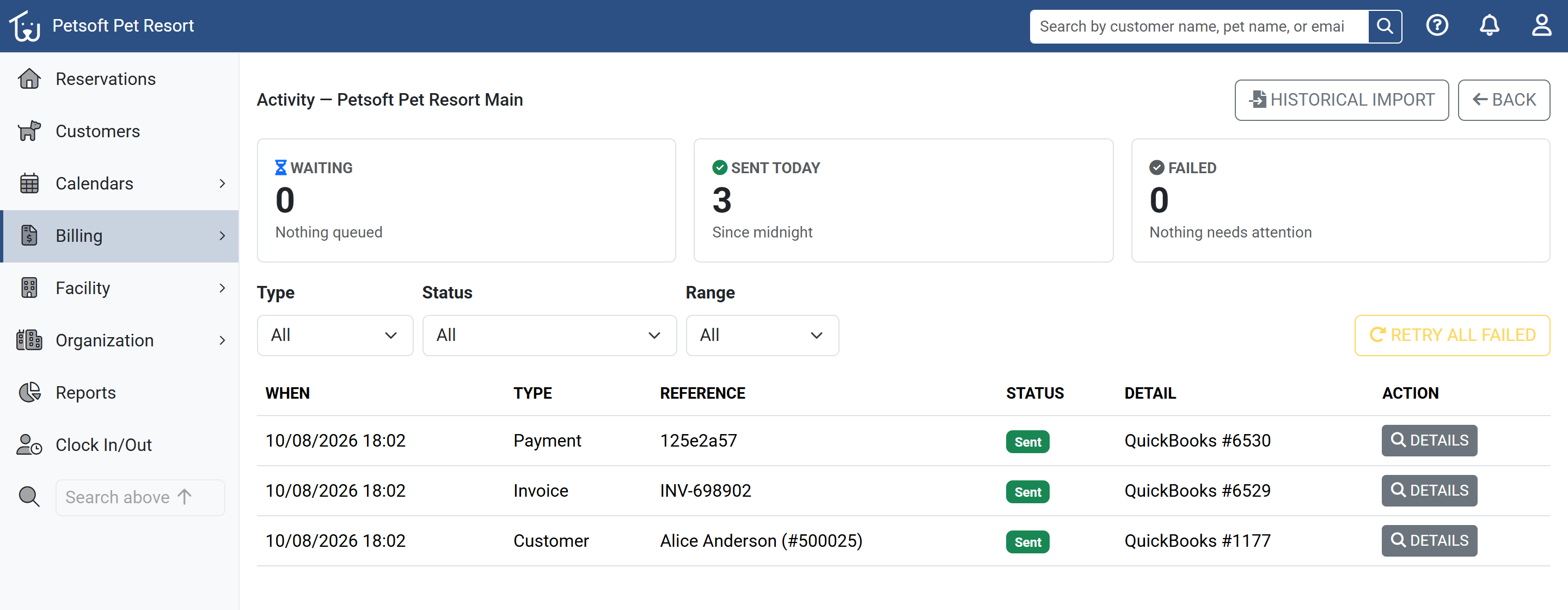 The Activity page. Click Details on any row to open that record's page.
The Activity page lists every record Petsoft has queued for this facility, newest first, with when it last changed, its type, a reference back to the Petsoft record, its status, and a short detail line. Narrow the list with the Type, Status, and Range dropdowns above the table.
| Status | What it means |
|---|---|
| Waiting | Queued, not yet sent. |
| In progress | Being sent right now. |
| Waiting on customer, Waiting on invoice, Waiting on payment | The record depends on another one that hasn't reached QuickBooks yet. For example, a payment waits for its invoice. It sends on its own once that record arrives. This isn't an error. |
| Checking QuickBooks | QuickBooks didn't answer the last time Petsoft sent this, so Petsoft checks whether it arrived before sending it again. This prevents duplicates. |
| Sent | Exported successfully. |
| Nothing to send | Petsoft looked at the record and deliberately didn't send it. For example, a refund of a Complimentary payment moves no money, so it isn't exported. |
| Failed | QuickBooks rejected the record, or a temporary problem kept happening. Needs your attention. |
| Canceled | Someone canceled this item, so it won't be sent. |
Besides customers, invoices, payments, and refunds, you may see a few Journal entry rows (for service fees, gratuities, and refunds to store credit) and Item rows (Petsoft updating its QuickBooks items after you change the account mapping).
If Petsoft had trouble reaching QuickBooks recently, for example because QuickBooks limited how fast Petsoft could send, or a read from QuickBooks failed, a Connection problems in the last 7 days panel appears above the list. A failed read never fails an item or sends an email. Petsoft simply tries again on the next sync.
Resolving a failed item
Click Review next to a failed row (or Details on any other row) to open the item's page.
The Why it failed panel explains in plain language what QuickBooks said and what to do about it. Below the explanation, Error details shows the raw code and message from QuickBooks. Common failures:
| Error code | What it means | What to do |
|---|---|---|
| 6240 | QuickBooks already has a customer, vendor, or employee with this exact name. | Retry. Petsoft reuses the existing match. |
| 6140 | The invoice number is already used in QuickBooks, even with the suffix Petsoft adds automatically. | Renumber the other invoice in QuickBooks, then retry. |
| 5010 | The record was edited directly in QuickBooks since Petsoft last sent it. | Retry. Petsoft reads the current version and tries again. |
| 3200 or 3100 | Petsoft's connection to QuickBooks needs reauthorizing. | Click Reauthorize on the facility page, then retry. |
| 610 | Something the record uses (an account, item, or customer) was deleted or made inactive in QuickBooks. | Make it active again in QuickBooks, or choose another account in the facility's account mapping, then retry. |
| 5020 | The QuickBooks user who connected Petsoft isn't allowed to create this kind of record. | Reconnect as a QuickBooks company admin, then retry. |
| 6190 | The QuickBooks company's subscription has lapsed or been canceled. | Retry once the subscription is active again. |
| 6430 | The mapped account's type can't take this record. | Check the facility's account mapping, then retry. |
| Customer email conflict | More than one QuickBooks customer uses this customer's email, so Petsoft can't tell which one is theirs. | Merge or change the duplicates in QuickBooks, then retry. |
| Invoice already paid | QuickBooks already shows the invoice as paid, usually because its sales tax came out slightly different from Petsoft's. The payment was still added to the customer's account in QuickBooks as a credit. | Apply or refund that credit in QuickBooks, then cancel this item. |
For an error Petsoft doesn't recognize, the page shows the raw message from QuickBooks with general guidance: correct the record in Petsoft or QuickBooks, then retry, and contact support if it keeps failing.
Temporary problems, like QuickBooks being briefly unavailable or receiving too many requests, don't fail an item straight away. Petsoft retries on its own, and the page shows when it will try again. An item only moves to Failed if the problem keeps happening.
From the item page you can:
- Retry a failed item. Petsoft sends it again on the next sync.
- Cancel this item if you don't want it sent at all. You can cancel anything that hasn't been sent yet. Canceling can't be undone for that item. The Petsoft record itself is untouched; it just never reaches QuickBooks.
If several items have failed, click Retry all failed on the Activity page to retry every failed item for this facility at once.
The Attempt history at the bottom of the page lists each attempt Petsoft made to send this record, including successes and anything later retries replaced. It's the place to check if an item failed once and later went through.
When a record fails, Petsoft also emails your organization's Account Owners, so failures don't go unnoticed even if nobody checks the Activity page that day. If you contact support about an item, include the Petsoft id and Queue item id shown on its page.
Resolving conflicts
A conflict is something the sync found out of step between Petsoft and QuickBooks that it couldn't settle safely on its own. For example, a customer whose phone number changed in both systems, or a payment deleted in QuickBooks that Petsoft still has. Petsoft never overwrites either side to make a conflict go away. It lists the conflict and lets you decide.
To see them, open QuickBooks Conflicts:
- The QuickBooks item under Billing in the sidebar shows how many conflicts are open.
- The Conflicts button on the QuickBooks facility list, or in a facility's Activity panel, opens the list. From a facility, it shows only that facility's conflicts.
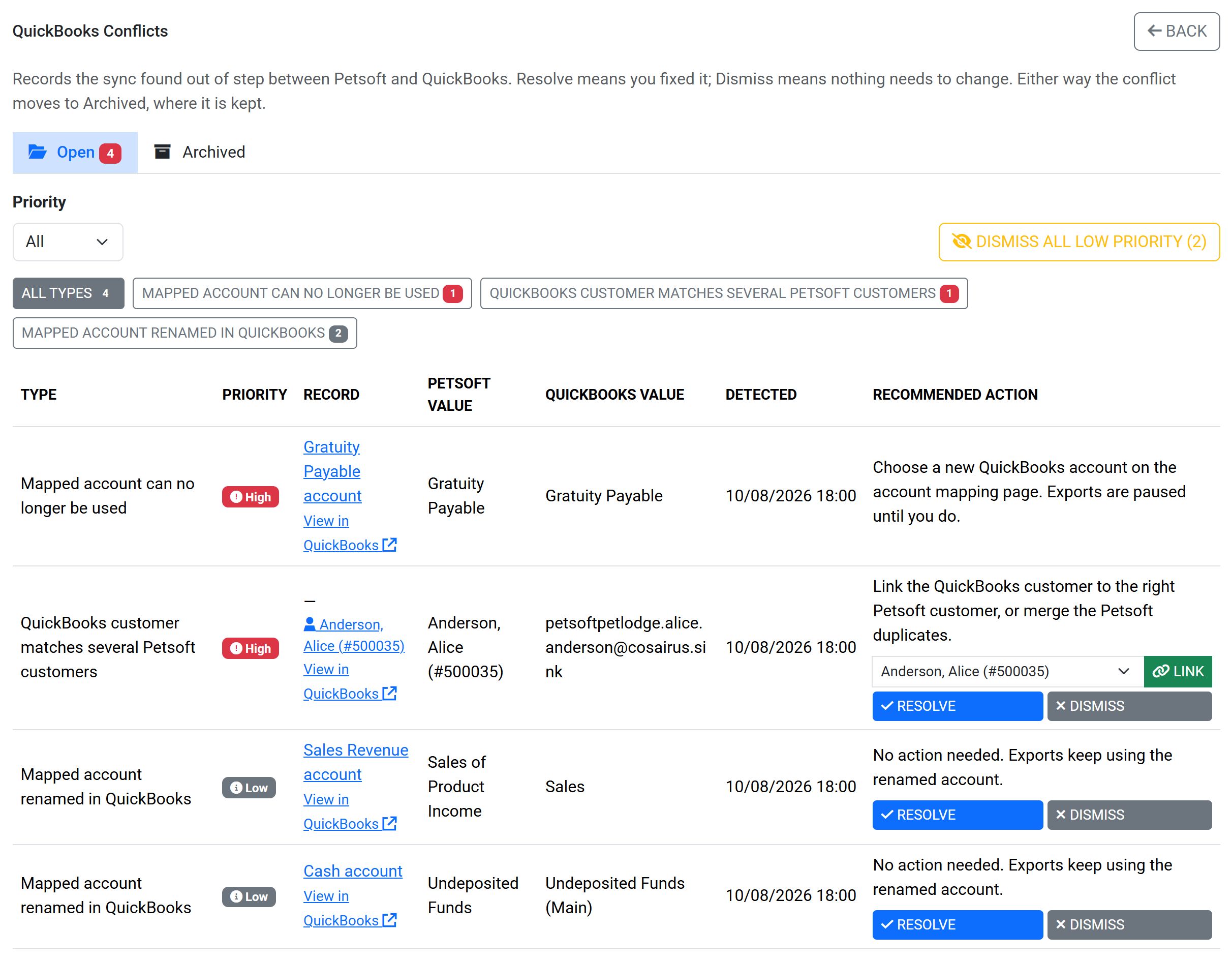 Open conflicts, highest priority first. Filter by priority or click a type to narrow the list.
Each row shows the conflict's type and priority, the record it's about (with a link to it in Petsoft and a View in QuickBooks link), the Petsoft and QuickBooks values side by side, when it was found, and the recommended action. Open conflicts are sorted by priority, then newest first:
| Priority | What it means |
|---|---|
| High | Act soon. Money, exports, or customer records are out of step until you do. |
| Medium | Check when you can. Petsoft is waiting on your decision or flagging a likely mismatch. |
| Low | For your information. Often nothing needs to change. |
Depending on the conflict, a row offers:
- Resolve: you fixed the cause yourself. The conflict moves to Archived.
- Dismiss: nothing needs to change. The conflict moves to Archived and isn't raised again unless the values involved change.
- Link: for a QuickBooks customer that could belong to more than one Petsoft customer, choose the right Petsoft customer from the dropdown and click Link. From then on, changes to either one sync to the other.
- Keep Petsoft value: send Petsoft's values for this customer to QuickBooks, replacing the QuickBooks values.
- Use QuickBooks value: copy the customer's name and phone from QuickBooks into Petsoft. The email is never copied. If the email is also in conflict, the conflict stays open for it.
Dismiss all low priority archives every open low-priority conflict at once. The Archived tab keeps every closed conflict, with whether it was resolved or dismissed, who closed it, and when. Many conflicts close themselves once the cause is fixed. These show Petsoft sync as the user who closed them.
Mapped account can no longer be used can't be resolved or dismissed by hand, because every export for the facility is paused until it's fixed. Choose a new account on the Account mapping page and save it. The conflict closes itself. See When an account changes in QuickBooks.
Conflict types
Customers
| Conflict | Priority | What to do |
|---|---|---|
| Several QuickBooks customers share this email | High | Merge or change the duplicate customers in QuickBooks, then retry the export from Activity. |
| QuickBooks customer matches several Petsoft customers | High | Link the QuickBooks customer to the right Petsoft customer, or merge the Petsoft duplicates. |
| Customer limit reached | High | Upgrade your subscription to import more customers from QuickBooks. Petsoft adds them automatically once there's room. |
| Customer email changed in QuickBooks | Medium | Confirm the new email with the customer before changing it in Petsoft. It's also their Pet Parent Portal sign-in. |
| Customer changed in both Petsoft and QuickBooks | Medium | Decide which value is right, then use Keep Petsoft value or Use QuickBooks value. |
| QuickBooks customer has the same name as a Petsoft customer | Medium | Link the QuickBooks customer to the matching Petsoft customer if they're the same person. |
| Customer reactivated in QuickBooks | Low | Reactivate the customer in Petsoft if they should be able to make reservations again. |
Accounts and items
| Conflict | Priority | What to do |
|---|---|---|
| Mapped account can no longer be used | High | Choose a new QuickBooks account on the Account mapping page. Exports are paused until you do. |
| Mapped account renamed in QuickBooks | Low | No action needed. Exports keep using the renamed account. |
| QuickBooks item no longer matches the Petsoft item | Low | Petsoft doesn't change items it didn't create. Update the item's name or taxable setting in QuickBooks to match Petsoft, or dismiss this if the difference is intended. |
Invoices
| Conflict | Priority | What to do |
|---|---|---|
| Paid invoice edited in QuickBooks | High | Petsoft never changes a paid invoice. Undo the edit in QuickBooks, or record the change in Petsoft by hand. |
| Invoice voided or deleted in QuickBooks | High | Void the invoice in Petsoft if that was intended. Otherwise restore it in QuickBooks. |
| QuickBooks invoice is now less than what was paid | High | Refund the difference in Petsoft, or correct the invoice in QuickBooks. |
| Invoice paid in one system but not the other | Medium | Compare the payments in both systems and record whichever is missing. |
Payments and refunds
| Conflict | Priority | What to do |
|---|---|---|
| Payment amount differs in QuickBooks | High | Correct the payment in QuickBooks to match Petsoft, which holds the actual transaction. |
| Payment deleted in QuickBooks | High | Petsoft kept the payment. The conflict's details say whether it was taken in Petsoft or recorded from QuickBooks, and which system to correct. |
| Refund deleted or voided in QuickBooks | High | Petsoft kept the refund. The details say which system to correct. |
| QuickBooks payment Petsoft couldn't record | High | Petsoft didn't record this payment, for example because the invoice was already paid or voided in Petsoft. The details say why and what to do. |
| Refund of a Petsoft payment issued in QuickBooks | High | Petsoft took this payment, so refund it in Petsoft and delete the QuickBooks refund. |
| QuickBooks refund couldn't be matched to a payment | Medium | Record the refund in Petsoft by hand if it belongs to a Petsoft invoice. |
| Reservation Deposit recorded from QuickBooks wasn't refunded | Medium | Refund the Reservation Deposit in QuickBooks, where it was taken. |
| Payment date differs in QuickBooks | Low | No action needed unless the date matters for your books. |
Sending older records: historical import
Petsoft only sends activity from after you connected. If the facility already has invoices, payments, and refunds in Petsoft that you want in QuickBooks too, use a historical import. Open it from:
- The Historical data panel on the facility page (Set up import, or View import once you've run one).
- The Historical import button on the Activity page.
- The link in the confirmation Petsoft shows after you finish the account mapping.
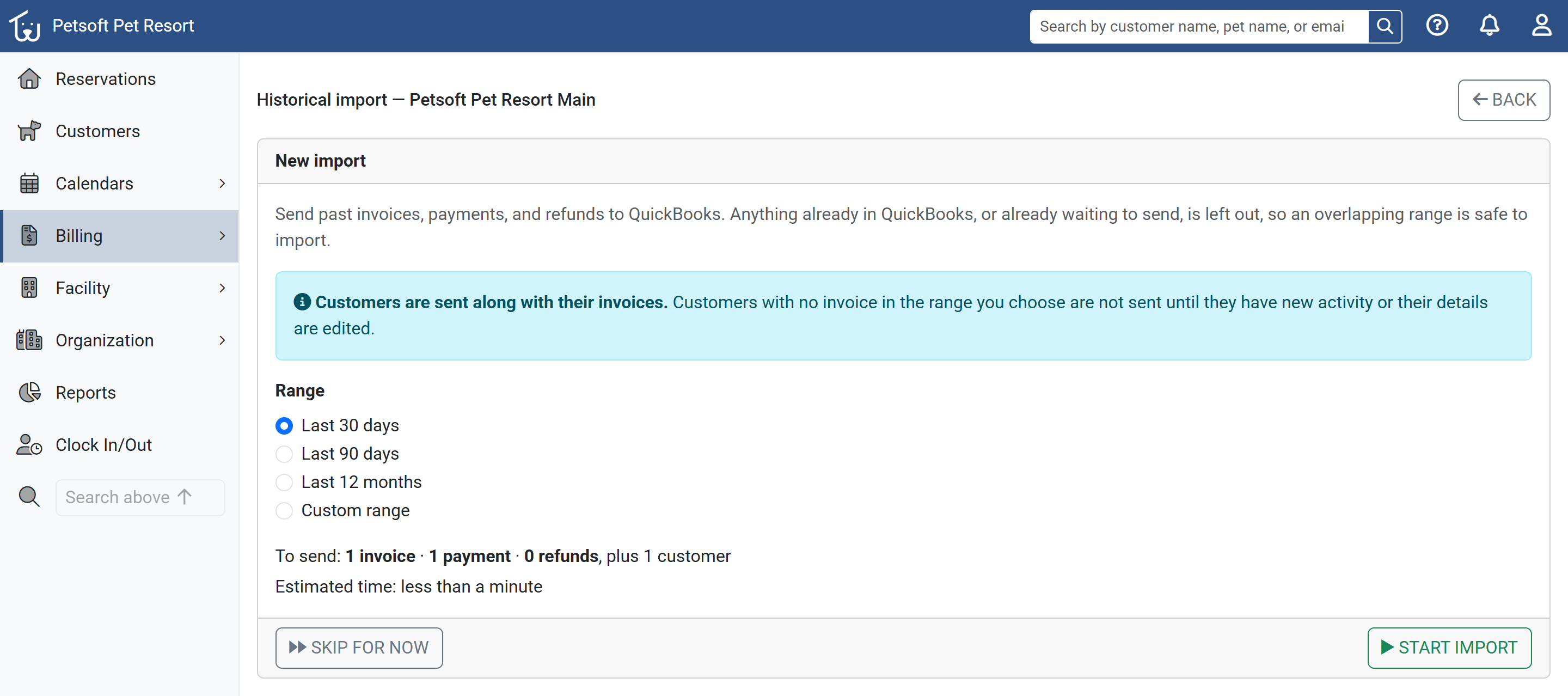 Petsoft counts what the range will send before you start the import.
- Choose a Range: Last 30 days, Last 90 days, Last 12 months, or Custom range. For a custom range, pick the From and To dates and click Update counts. The range can't end after today.
- Check the counts Petsoft shows before you commit: how many invoices, payments, and refunds it will send, how many customers go along with them, and an estimated time to finish.
- Click Start import.
A few things decide what's included:
- Nothing is sent twice. Anything already in QuickBooks, or already waiting to send, is left out, so importing an overlapping range is safe.
- Customers go with their invoices. A customer with no invoice in the range isn't sent until they have new activity or their details are edited.
- Types you've switched off are left out. If a type is unticked under What to send, the import skips it, except where another record needs it.
- Earlier records come along if needed. A payment in the range that pays an invoice from before the range brings that invoice with it.
The import can't start while exports are paused, while QuickBooks access has expired, or before every account is mapped. The page tells you which one applies. The first time you visit, you can click Skip for now to go straight to the Activity page instead.
Petsoft works from oldest to newest and paces itself to stay inside QuickBooks' limits, so a large history can take a while. Your everyday exports keep running normally while it works. Historical records never delay today's invoices.
While an import runs, the page shows a progress bar for each record type, how many records are done, the date it has reached, and how many failed. Click the failed count to see those items on the Activity page. The page refreshes itself every 30 seconds. You can Pause and Resume the import, or click Cancel import to stop it. Canceling only affects records not sent yet. Anything already sent stays in QuickBooks, and you can import the rest later.
When the import finishes, the Last import panel shows the range it covered and how many records were sent, failed, or canceled.
If you're trying QuickBooks for the first time, start with a small range, such as the last 30 days rather than your full history. It's much easier to sort out an account-mapping problem against thirty records than against several thousand.
A historical import sends Petsoft records to QuickBooks. To bring QuickBooks customers into Petsoft, use Import customers from QuickBooks instead.
Troubleshooting
| What you see | What it means | What to do |
|---|---|---|
| A facility shows Action needed | QuickBooks access has expired, the account mapping isn't finished, a mapped account can no longer be used, or some items failed to send | The facility list and the facility page say which one applies |
| "A mapped account can no longer be used in QuickBooks, so exports are paused" | A mapped account was deleted, made inactive, or changed type in QuickBooks. Every export for the facility waits, and may show as Waiting on customer (or invoice, or payment) until it's fixed | Click Choose new accounts, pick a usable account for each flagged row, and click Save mapping. Nothing is lost |
| A facility shows Paused | Exports are paused, the facility was disconnected, or nothing is ticked under What to send | Click Resume exports, click Reauthorize, or tick Invoices, as appropriate |
| Items stuck on Waiting on invoice (or customer, or payment) | Normal. The record it depends on hasn't reached QuickBooks yet | Wait. If the record it depends on failed, fix that one and the rest follow. If the facility shows Action needed, check the account mapping first |
| Nothing new appears in QuickBooks, and nothing is waiting | Nothing was queued: exports were paused, or that type was switched off when the activity happened | Check the facility page, then send the missed records with a historical import |
| The QuickBooks sidebar item shows a number | There are open conflicts | Open Conflicts and work through them, highest priority first |
| An invoice has a line described "Change made in QuickBooks" | Someone edited the exported invoice in QuickBooks, and Petsoft brought the change in | Expected behavior. See What Petsoft reads back from QuickBooks |
| A payment can't be refunded in Petsoft | It was recorded from QuickBooks, so Petsoft never took the money | Refund it in QuickBooks. Petsoft records the refund on the next sync |
| A customer's new email from QuickBooks didn't come through | Petsoft never copies an email from QuickBooks, because it's also the customer's Pet Parent Portal sign-in | Check Conflicts, confirm the address with the customer, and update it in Petsoft |
| A paid Petsoft invoice shows a small open balance in QuickBooks | QuickBooks calculated its own sales tax, which can differ slightly from Petsoft's | Expected behavior. See About sales tax |
| "Petsoft can only connect to QuickBooks companies that use US dollars" | The QuickBooks company's home currency isn't USD | Connect a company that uses US dollars |
| "This facility is connected to … To use a different QuickBooks company, disconnect this facility first" | You signed in to a different company while reauthorizing | Reauthorize with the original company, or disconnect first if you really mean to switch |
| Locations don't show up in QuickBooks reports | Location tracking is off in that QuickBooks company | In QuickBooks, go to Settings > Account and settings > Advanced > Categories and turn on Track locations, then click Reload locations on the facility page |
Conclusion
Once connected, QuickBooks syncing runs on its own every minute. The Activity panel and page tell you what's waiting, what was sent, and what failed, and each failed item comes with a plain-language explanation and a one-click retry. The Conflicts page lists anything the two systems disagree on, with a recommended action for each. A historical import sends anything from before the connection existed, without slowing down today's exports.
Still stuck?
Our team is happy to help. Reach out and we'll get you back on track.
Not a Petsoft customer yet?
These are the same guides our customers use. Prices are on our site, and the demo is a working account with sample pets and bookings already in it.