The Daily Schedule Board
The Occupancy Board is the heart of your daily operations. It shows you exactly which pets are in which runs and when new pets are arriving. Whether you're managing a 100-run business or a single grooming van, this board is where you track your day.
To see the board, go to Overview > Schedule.
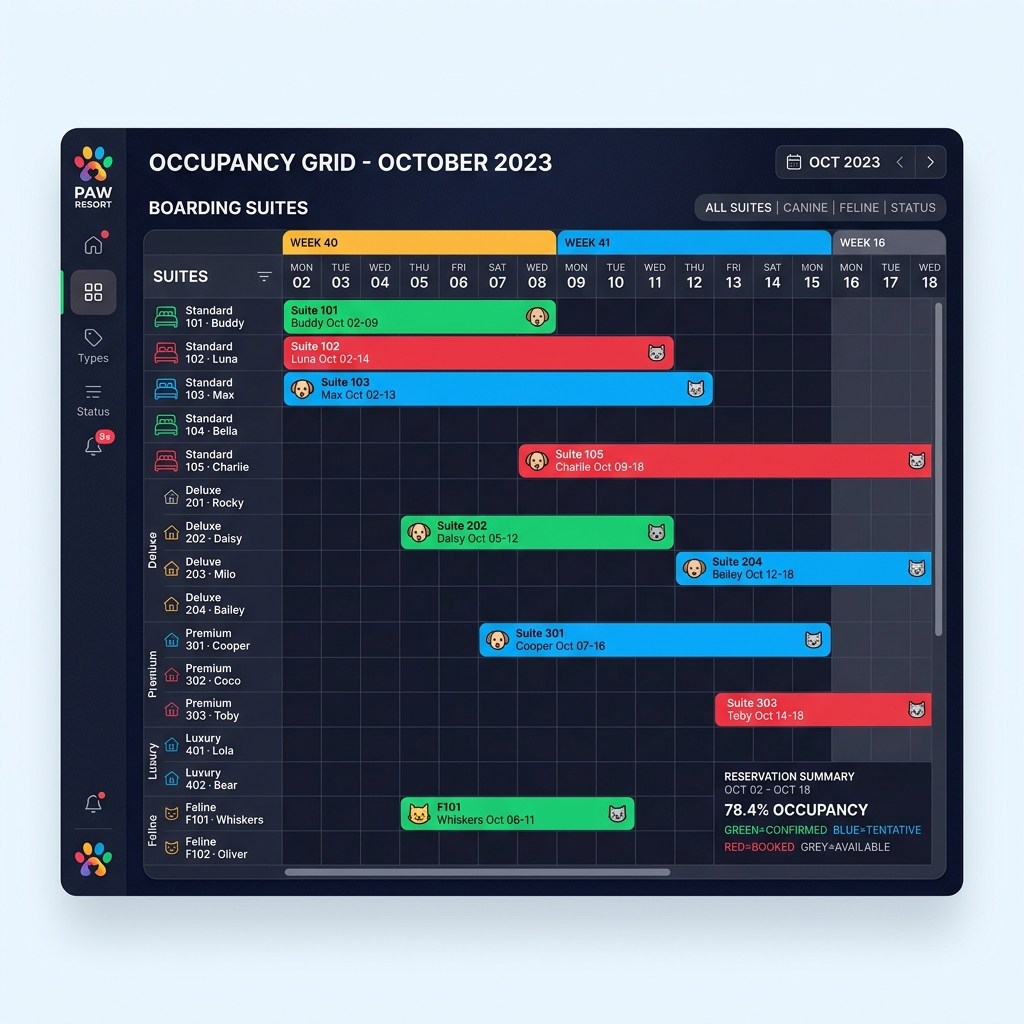 The Board showing where every pet is staying.
How to read the board
- Left Side (Rows): These are your runs.
- Top (Columns): These are the dates.
- Colored Blocks: These are the pets' stays. The length of the block shows how long they are staying.
What do the colors mean?
We use colors to show you the status of every stay:
| Run | Monday | Tuesday | Wednesday |
|---|---|---|---|
| Run 1 | Green: In Run | Biscuit | |
| Run 2 | Blue: Confirmed | Waffles | |
| Run 3 | Red: Conflict! |
- Green: The pet is already checked in and in their run.
- Blue: The stay is confirmed and ready for the pet to arrive.
- Yellow: The stay hasn't been confirmed yet.
- Red: Conflict! This means two pets are booked in the same run at the same time.
How do I fix a double-booking?
If you see a Red block, you need to move it to a different run:
- Click and hold the Red block.
- Drag it up or down to an empty run.
- Let go! Once the run is empty, the block will turn blue.
Checking pets in and out
Click on any block to see what you can do:
- Check In: Click this when the pet arrives. The block will turn Green.
- Check Out: Click this when the pet is leaving. This will take you to the payment screen to finish the bill.
Was this page helpful?
Still stuck?
Our team is happy to help. Reach out and we'll get you back on track.