Changing your email and password
You can change the email address and the password you log in with yourself, in the Parent Portal. You do not need to contact your facility.
Your email address is your username. Petsoft does not use a separate username. When you change your email address, you also change what you type to log in.
Open your account settings
- Log in with your current email address and password.
- Click the person icon in the top-right corner of the page to open the user menu.
- Select My Petsoft.
The Settings page opens. The Account Information section at the top shows your current email address and two buttons: Update Email and Update Password.
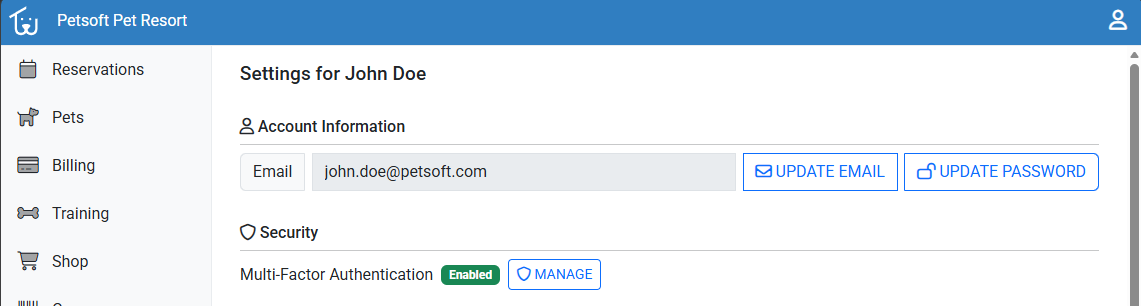 Account Information shows the email you log in with. Use the two buttons beside it to change your email or your password.
Change your email address
- On the Settings page, click Update Email.
- Type your new address in New Email.
- Type it again in Confirm New Email. Both fields must match.
- Click Save in the top-right corner of the form.
You return to the Settings page, which now shows your new address. The change takes effect immediately:
- Use the new address the next time you log in. The old address no longer works.
- Your facility sees the new address too. Petsoft updates your contact email at every facility where you have an account, so reservation emails and receipts go to the new address.
If you see "This email is already associated with another user.", another Petsoft account already uses that address. Choose a different address, or ask your facility for help.
Type the new address carefully. Petsoft does not send a confirmation email to the new address, so a typo goes unnoticed until you try to log in. If that happens, ask your facility to correct it.
Change your password
- On the Settings page, click Update Password.
- Type your Current Password.
- Type your New Password, then type it again in Confirm New Password.
- Click Save in the top-right corner of the form.
Your new password must be at least 8 characters long and contain at least three of these:
- an upper case letter (A–Z)
- a lower case letter (a–z)
- a number (0–9)
- a special character, such as
!,@,#, or$
A passphrase of 20 characters or more does not need to meet these rules.
If Petsoft shows an error under Current Password, the password you typed does not match your current one. Try again, or use Forgot Password? as described below.
If you cannot log in
If you forgot your password, you can reset it without logging in:
- On the login page, click Forgot Password?
- Enter the email address you log in with, then click Send Password Reset Email.
- Open the email and follow the link to choose a new password. The link expires after 12 hours.
If the email does not arrive, check your spam folder. If you no longer have access to the email address on your account, contact your facility. Staff can send a confirmation link to a new address you choose. After you click it, you log in with the new address.
Related Articles
Still stuck?
Our team is happy to help. Reach out and we'll get you back on track.
Not a Petsoft customer yet?
These are the same guides our customers use. Prices are on our site, and the demo is a working account with sample pets and bookings already in it.